

Rings
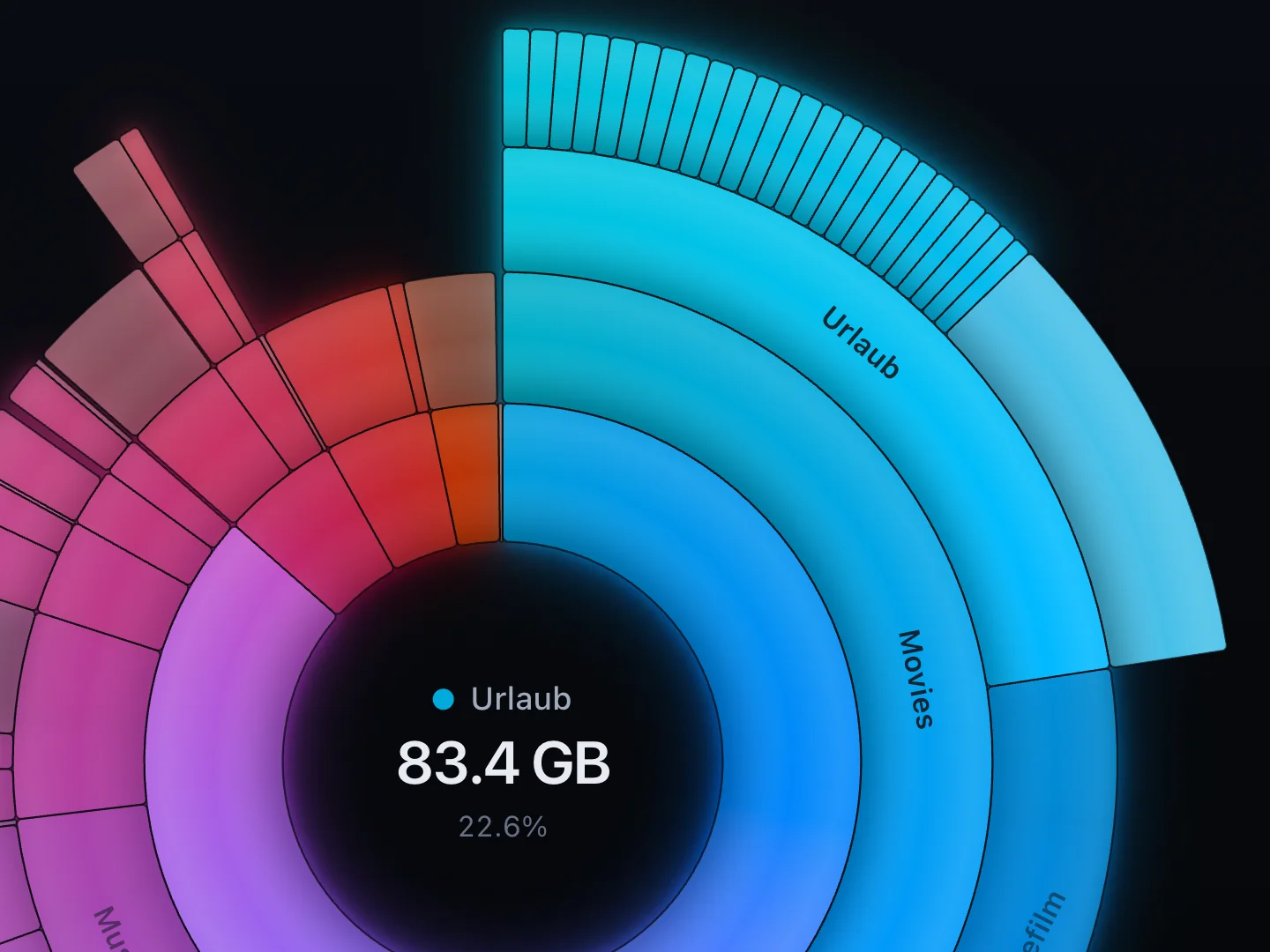
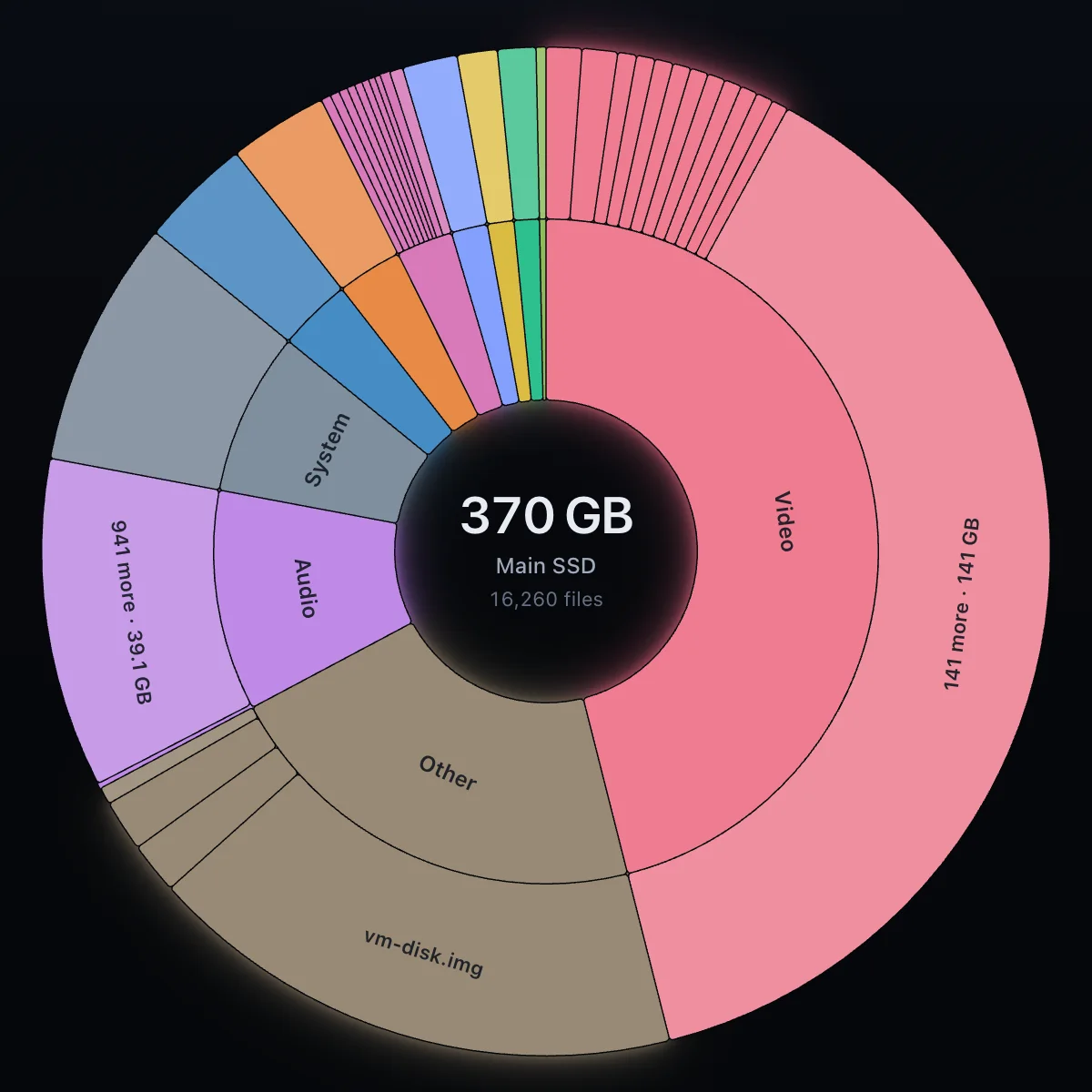
The scanned location in the middle, every folder level one ring further out. The longer the arc, the more space it takes.
Disk space analysis for macOS, Windows and Linux
See what takes up the space on your drives.
Deepsize reads drives or single folders and shows every folder and every file by size. The picture grows while the scan is still running, and you move what you no longer need to the Trash right from the view.
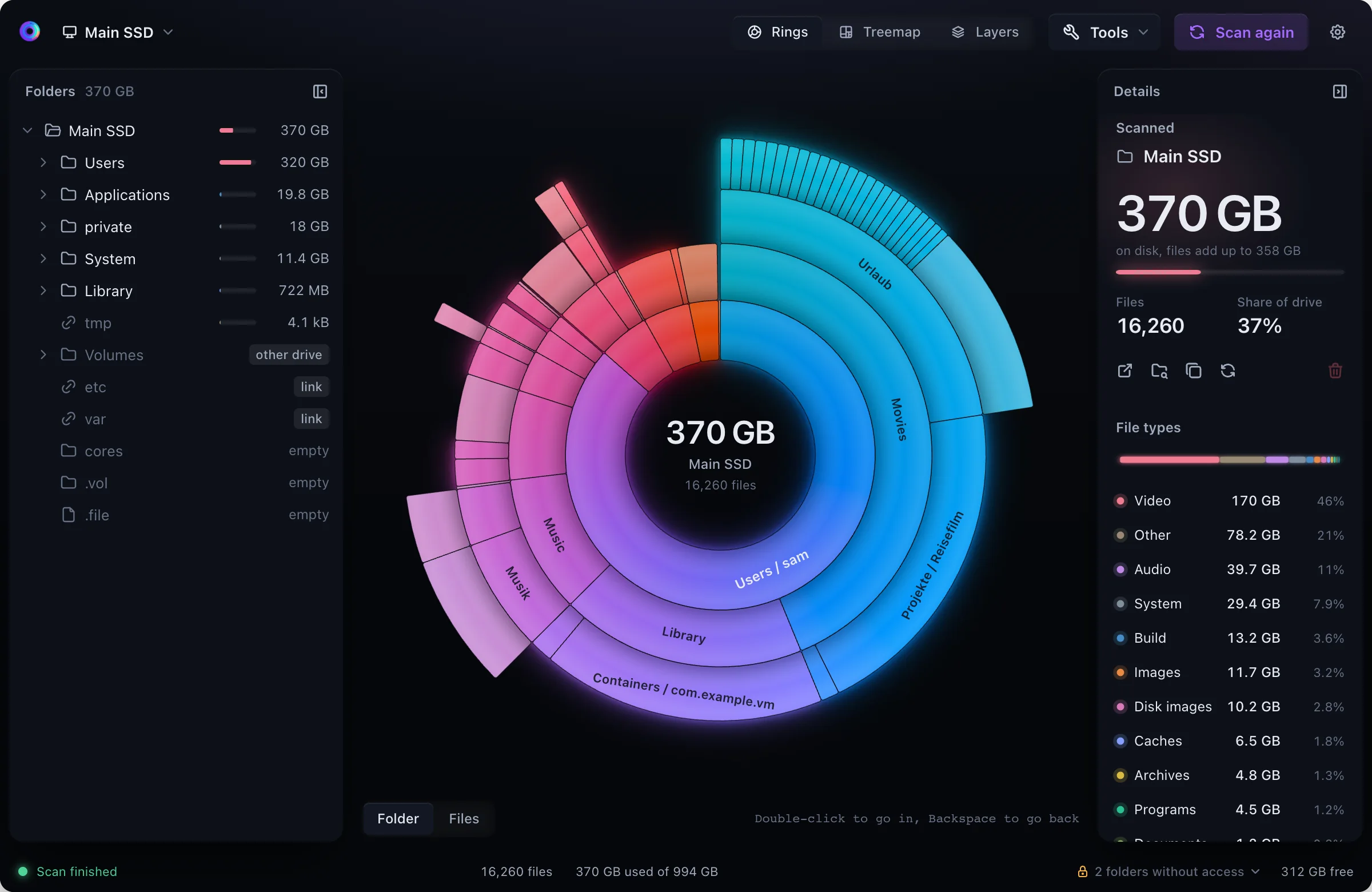
Rings, treemap and layers show the same scan. The selection is always the same in the tree, the view and the details.
The view grows while Deepsize is still reading. You can already select and go into folders in the meantime.
After the scan Deepsize follows the changes on disk and counts changed folders again in the background.
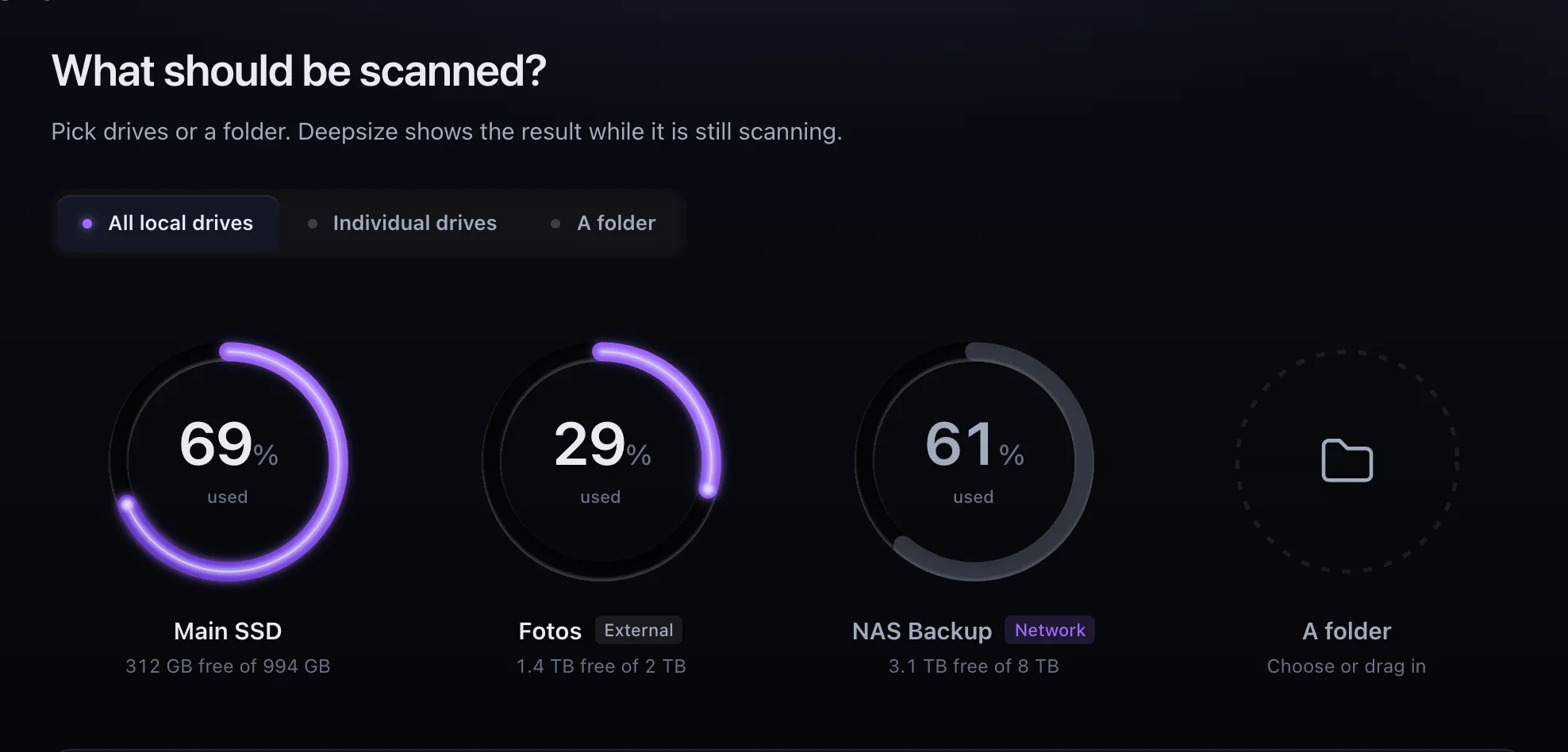
Internal, external and network drives are there to pick. A drive you plug in shows up in the list right away.
Video, images, audio, code, caches and more, each with its size for the folder you are looking at.
Every deletion asks first, with count and size, and goes to the Trash. The tree adjusts without a new scan.
Views
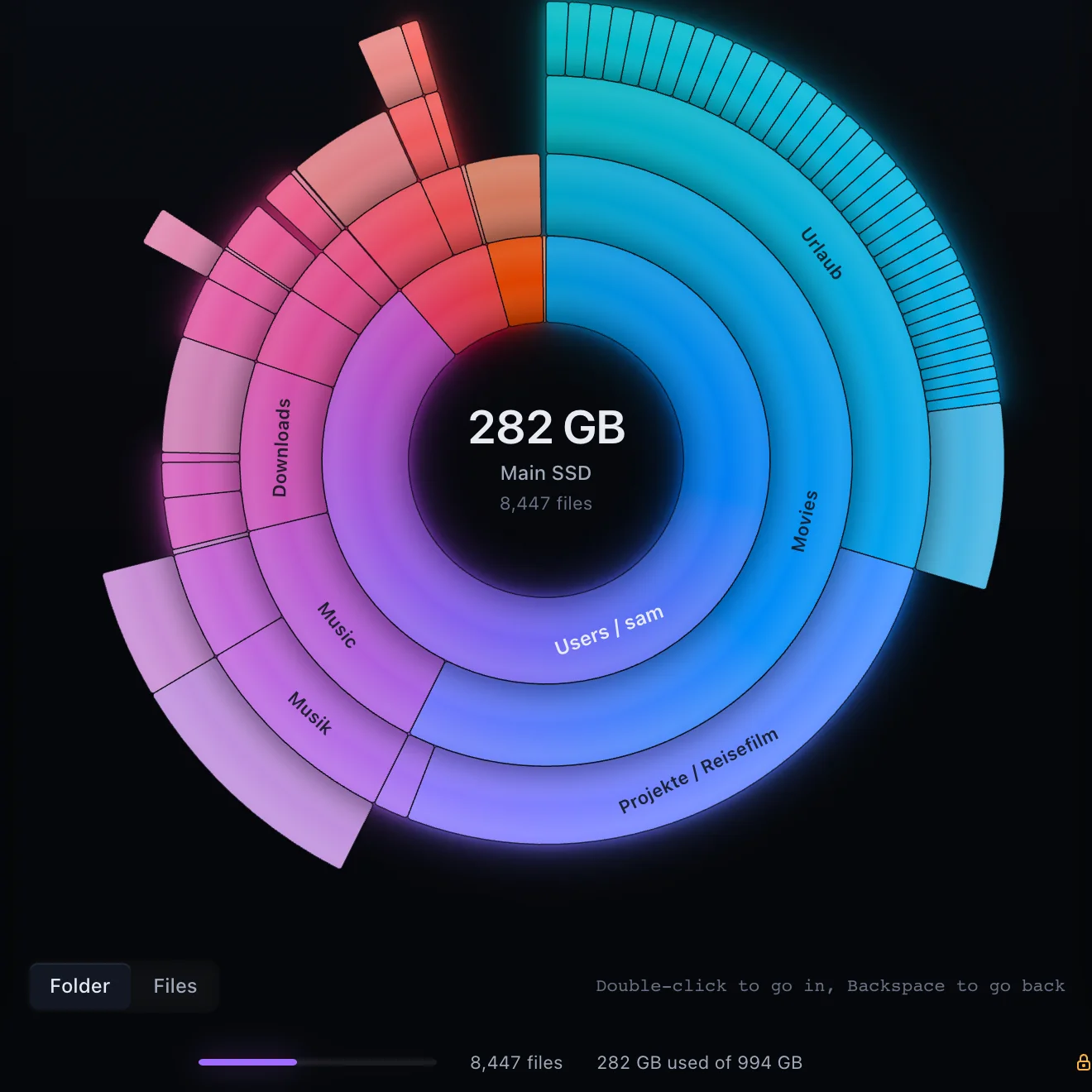
A click selects, a double-click goes into the folder, Backspace goes back. The colour follows the folder or the file type.
The scanned location in the middle, every folder level one ring further out. The longer the arc, the more space it takes.
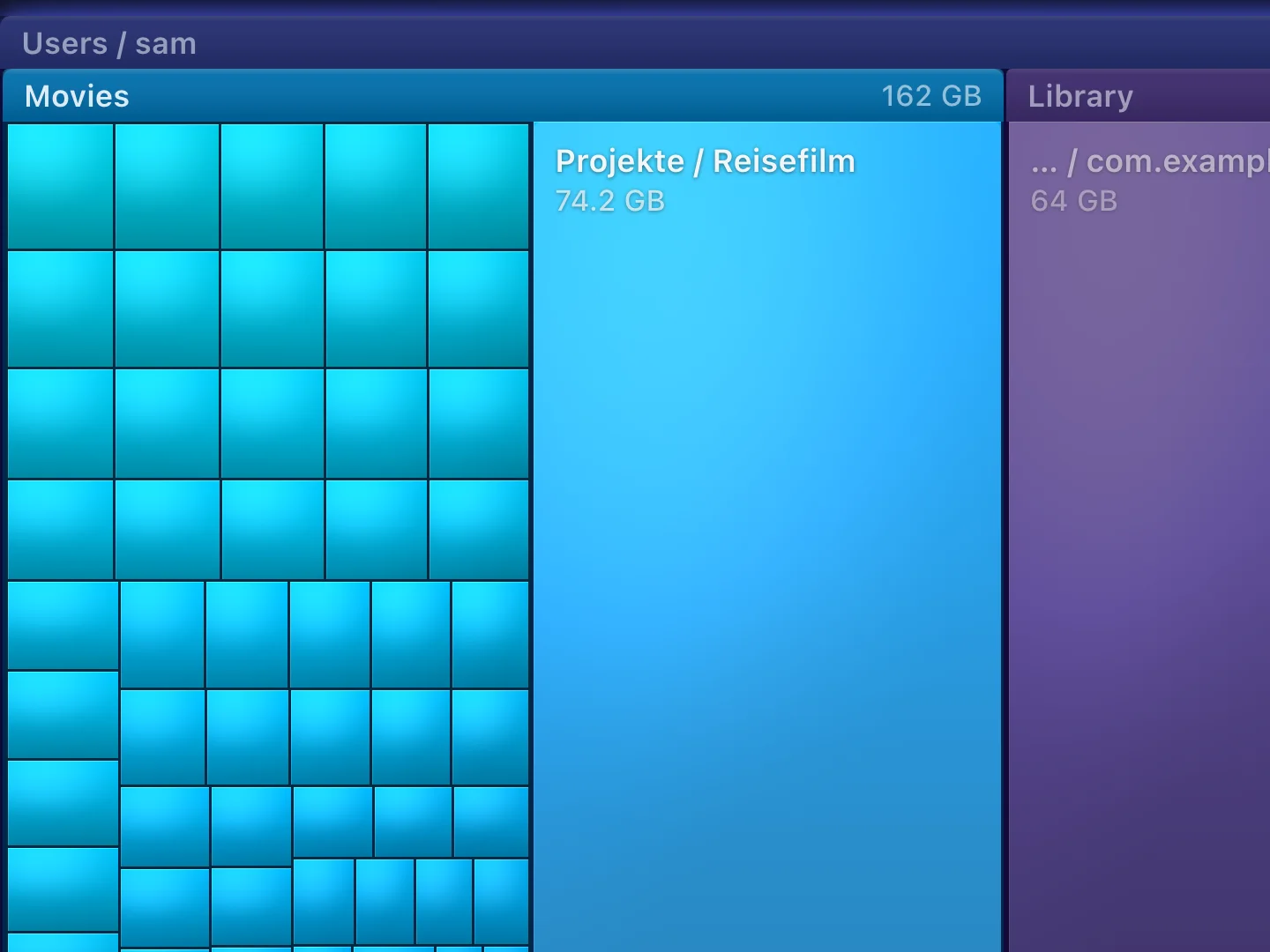
Every file a cushion, every folder a frame. The area matches the space taken.
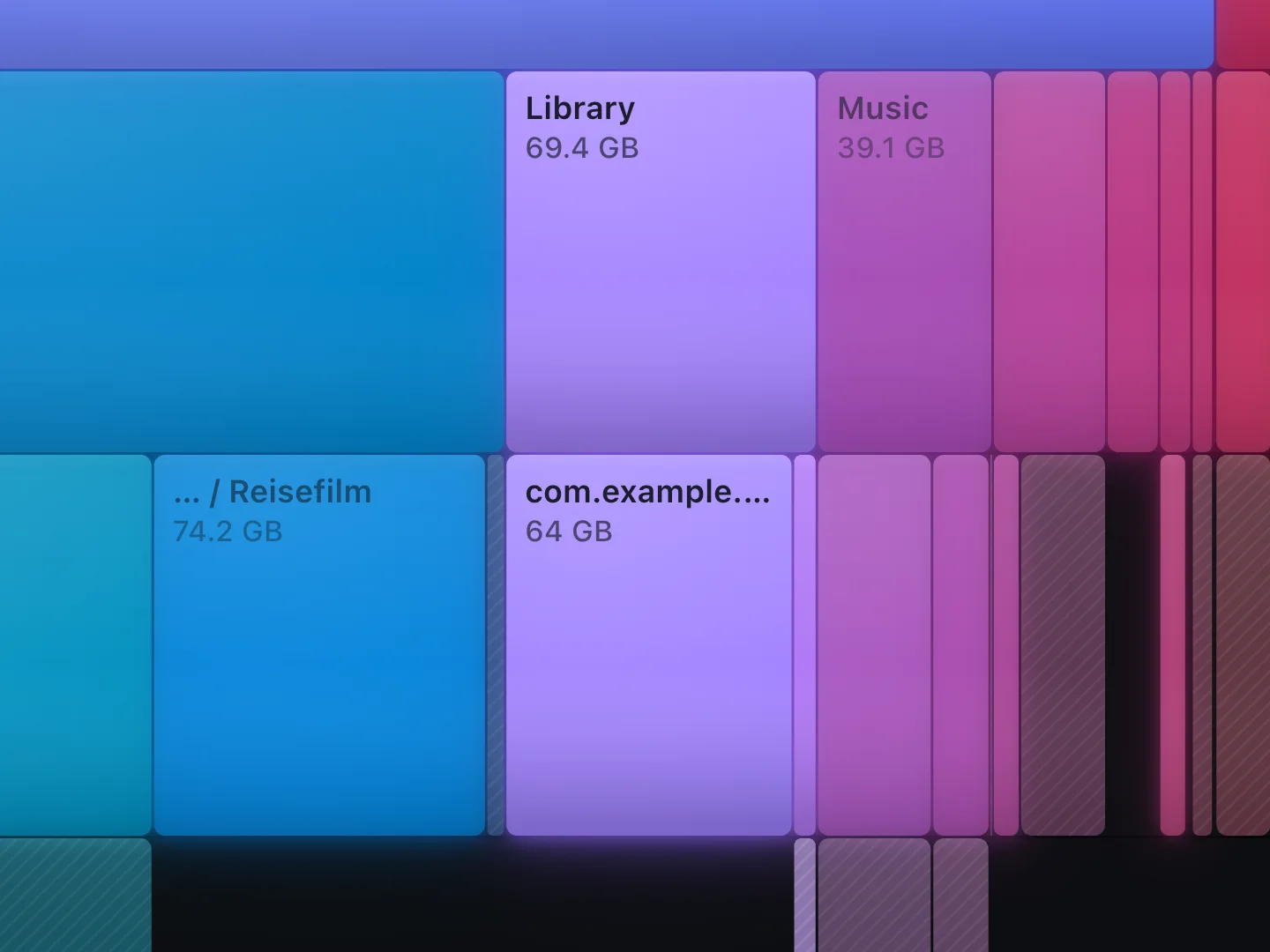
The scanned location on top, every folder level one layer further down. The wider, the more space it takes.
Folders and files
In folder mode the folders are the units, every top folder in its own hue. In files mode Deepsize shows what the location holds by type: one arc per file type inside, the largest files of each type outside.
Live
Deepsize reads on all cores and keeps sending a fresh picture to the view. Once the scan is done, it follows the changes on disk and counts changed folders again without reading everything anew.
Drives
To start, you pick all local drives, single drives or a folder, also by dragging it into the window. External and network drives are marked, and a drive you plug in shows up without a restart.
Deepsize Pro
Pro unlocks three functions. Without Pro you can see them, but they are locked.
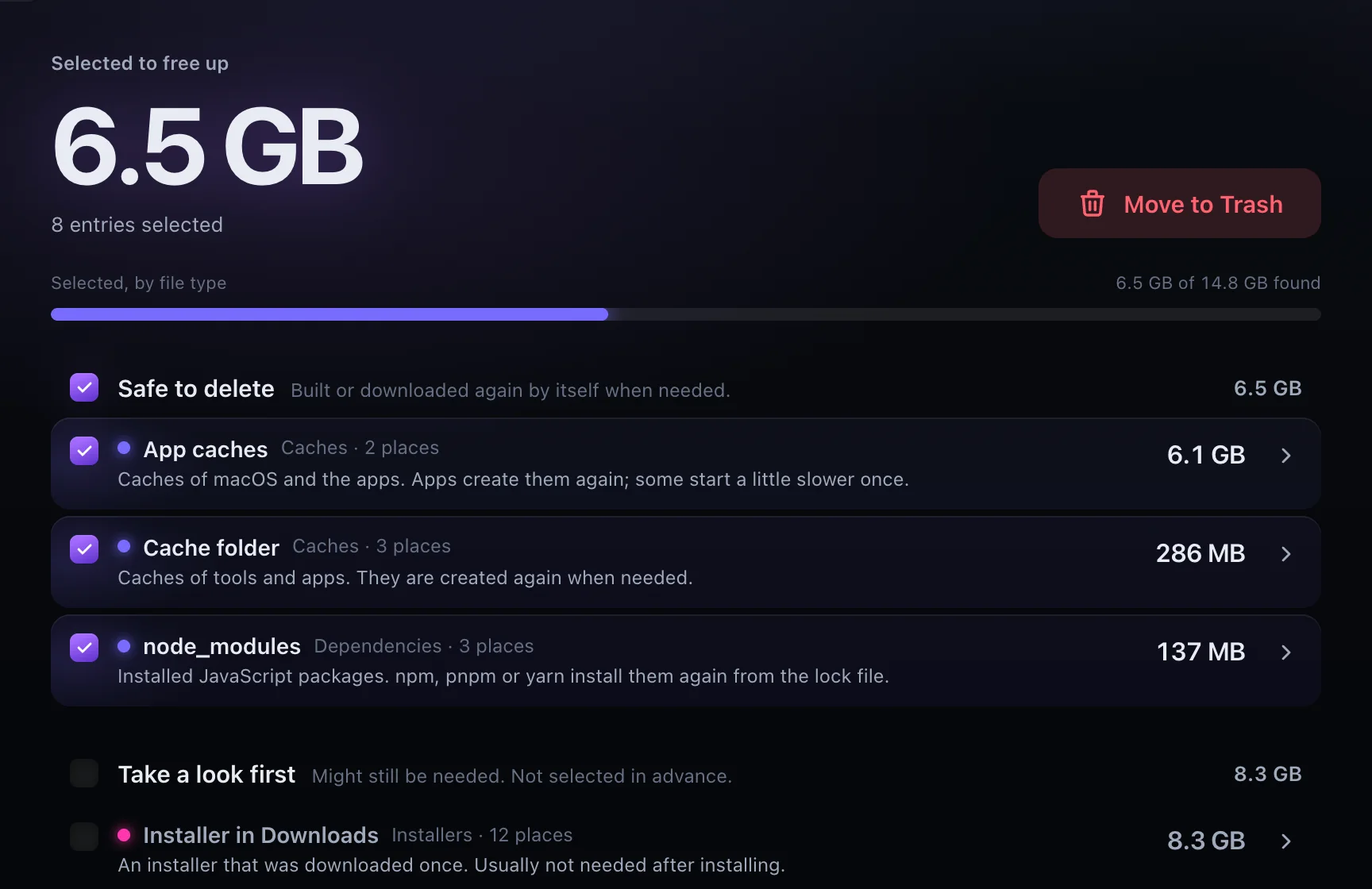
Caches, dependencies, build output and old installers, sorted by size and explained. What comes back by itself is ticked in advance; what you should look at first is not.
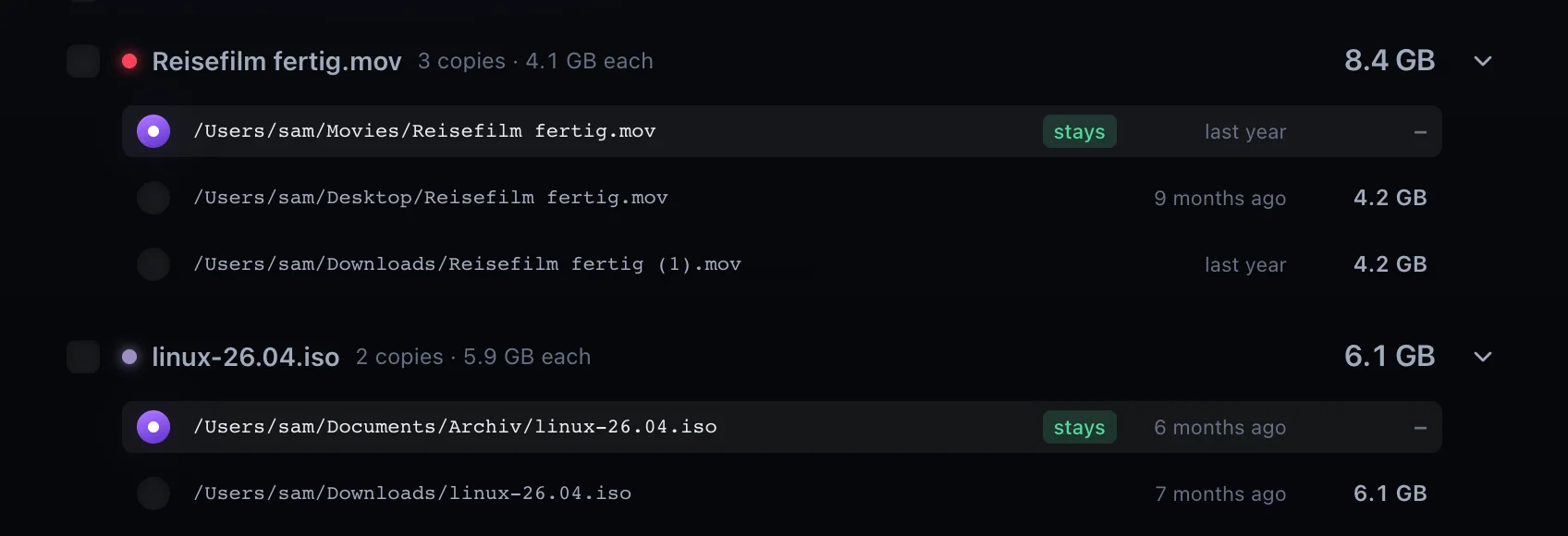
Files with the same content, grouped by wasted space. You pick the copy that stays in each group; hard links do not count as duplicates.
Every complete scan is saved. When comparing, the view colours by growth, and a list names what grew, what is new and what is gone.
Deepsize reads your drives on your computer and saves the scans there. Names, paths and sizes from your scans do not go online. Deepsize connects only to look for updates and, if you use Pro, for the licence.

The scan, every view, the folder tree, the file types and the actions up to the Trash are part of the free version.